Links are an important part of your publications. They show up on the browser address bar, in the preview of some social networks when sharing, or on a device when scanning a QR code, to name a few.
Customizing them can help you reinforce the ownership of your publications, project professionalism and attention to detail, and help your users remember your brand and your content.
What's the Difference Between a Domain, Subdomain, and URL?
A URL is the complete address of a specific page, such as https://flipbooks.mybrand.com/my-flipbook-one.
A subdomain is an extension of a domain, such as flipbooks.mybrand.com, often used to host specific content while keeping it connected to the main website.
A domain is the main address of a website, such as mybrand.com.
In short, the domain is your main website address, the subdomain is a section of that domain, and the URL is the full address used to access a particular page.
Customize your flipbook’s URL and subdomain.
We will see through the following steps how you can customize your flipbook’s URL and subdomain.
Step 1: Make sure you are on the Heyzine Professional plan.
Step 2: Go to your account page on the dashboard and select the Domain tab.
Step 3: Choose your subdomain on aflip.in or hflip.co. So let's say your brand name is "mybrand", then your flipbook links will look like https://mybrand.hflip.co/123

Step 4: Type a home page redirection. This way, anyone directly accessing https://mybrand.hflip.co without writing the flipbook path will be redirected to your website.
Step 5: Customize the final part of the link for each flipbook through the editor "Share" menu, selecting the domain option you want to edit:

The link will finally look like https://mybrand.hflip.co/my-flipbook-one
A custom (sub)domain with a root redirection is the easiest way to go, and it's more than enough for most cases.
Customize your flipbook’s domain
Now, let’s get to the steps for the domain customization. It doesn't make a big difference, but sometimes you may need to use your own domain to get rid of the aflip.in / hflip.co part. You can do it by configuring a CNAME DNS Record on your domain provider.
Step 1: Make sure you are on the Heyzine Premium plan.
Step 2: Go to your account page on the dashboard and select the Domain tab.
Step 3: Select the DNS option and follow the steps provided by Heyzine in your domain provider’s panel.

Step 4: Customize the final part of the link for each flipbook through the share menu.
And that's it! With a custom domain, your flipbooks can reflect your brand at every step, helping you create a more professional experience and online presence.
There are many domain providers, but to help you better with this, here you can find the official guides for the most popular domain name providers:
GoDaddy
Namecheap
AWS
DigitalOcean
Google Cloud
Azure
Microsoft
If you need help with it, contact us at support@heyzine.com.
Custom link availability with Heyzine
Custom links are available on the following paid plans:
- Professional Plan: Includes 1 custom URL and subdomain.
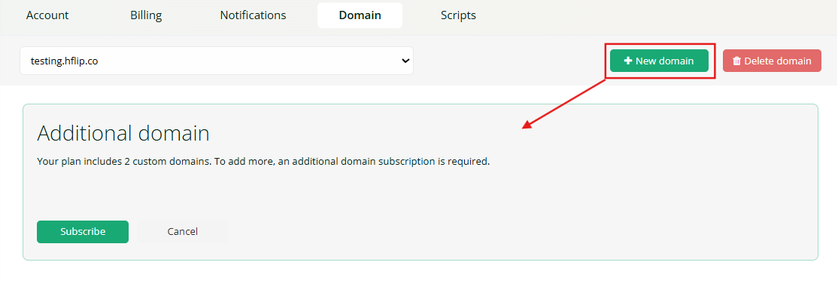
- Premium Plan: Includes 2 custom domains.
If needed, you can purchase additional domains. This is particularly useful for businesses that manage content for multiple clients.